
On the record · Operating manual
How to Run Government Affairs in Statecraft
Edition 1.0 · October 22, 2026
Download the PDF (25 pages)Start here
On the record · Operating manual · Edition 1.0 · October 22, 2026
Run one repeatable cycle: review what changed → decide what matters → prepare the relationship → record the conversation → own the next action → brief leadership.
Start with the shortest path for the job in front of you. Read the numbered main path first; use Edge cases / troubleshooting when something does not fit. You do not need to memorize every available field.
All connected examples use fictional Cedar Ridge Industries, Linden County, Fairview and demonstration stakeholders. They teach operating practice, not facts about real officials, bills or meetings.
New practitioner: read Chapters 1–2, then prepare, record and follow through with Chapters 7–9.
Team leader: use Chapters 2 and 11–13 to review ownership, exceptions, reporting and continuity.
Evaluating adoption: follow the connected example through Chapters 1, 7–9 and 12. It shows the records and judgment a team must maintain.
Administrator: use Chapter 14 for maintenance boundaries and help. This manual is not an onboarding program or an authorization to change access.
Software requirements and team practice: required form fields control whether an entry saves. Good government-affairs practice requires more: accurate meaning, evidence, relevant connections and agreed responsibility. The manual names both without implying that software enforces every team standard.
1. Understand the operating record
Outcome: know which record holds each part of the work.
Use this after: joining a workspace or taking responsibility for an unfamiliar priority.
Before you start: confirm the workspace name in the sidebar. Read existing records before creating anything.
The main path
- Open Contacts to find the person. Read their role, organization, relationship context and recorded history.
- Open Organizations to understand the body or institution the person belongs to.
- Open Issues to find your team's objective: what it wants to understand, influence or achieve.
- Open Policy Items for a particular bill, ordinance or proceeding. Follow its connected Issue and developments.
- Open Interactions for what people actually discussed, requested or agreed. A next action on an interaction is the current commitment.
- Open Calendar for the scheduled meeting, hearing or deadline. Return to the source records when you need the explanation behind a date.
A good example
Cedar Ridge Industries needs to understand development incentives in fictional Linden County. TIF / Development Incentives is the Issue. Fairview development incentives — draft ordinance review is a fictional Policy Item. Helen Ostrowski is a Contact associated with the City of Fairview. A meeting Interaction records Helen's request for a fiscal-impact note. Its commitment gives Sam Carter the next action. An Event reserves time to review the note.
These are connected parts of one story. They answer different questions; they are not six copies of the same note.
Check your work
Can you find the objective, the policy record, the relevant person, the conversation and the next action? Follow a saved link rather than relying on matching names.
Edge cases / troubleshooting
Issue or Policy Item? An Issue describes the team's priority. A Policy Item describes a particular instrument or proceeding. One Issue can require attention to several Policy Items.
Commitment or Event? A commitment says who must do what. An Event says when something is scheduled. A calendar entry alone does not record that a promise was fulfilled.
A connection is missing. Related subjects are not automatically linked. Use the relevant linking workflow in Chapters 4, 5 or 8, then check the saved result.
Software versus practice. The software stores records and connections. Your team must supply accurate meaning, evidence and ownership.
Next
Use Chapter 2 to choose today's work.
2. Start the working day
Outcome: choose the next consequential task and confirm its context.
Use this after: starting the day or returning after time away.
Before you start: check the workspace. Allow current records to load before interpreting a count.
The main path
- Open Command Center and select My Work for your own follow-through.
- Read What changed? Open a development or interaction that could change today's priorities.
- Read What needs me? Open the relevant commitment and check its action, owner, date and current state.
- Read What's coming? Check the next meeting or deadline against its source record.
- Read Who needs attention? Open a flagged contact and inspect their actual history before deciding on outreach.
- Select Team to check the shared picture. Choose the next action that matters most and do the work from its source record.
A good example
Sam sees the fiscal-impact note due October 26. Before sending anything, Sam opens the meeting, checks Helen's request and reads the connected policy context. The team agrees that checking the note's assumptions comes before broader outreach.
Check your work
You can name the next deliverable, explain why it matters and point to its source. An approaching date has an owner; an uncertain fact remains labeled uncertain.
Edge cases / troubleshooting
My Work is not the whole workspace. It includes your authored interactions, assigned commitments, personal watches and events you created or attend. Shared Issues and Policy Items remain visible. Use Team when reviewing another person's action or shared coverage.
A commitment seems missing. Open its Interaction. Check Next action, completion state, assigned teammate and date. Do not create another action simply because it is absent from one view.
A relationship is flagged. Inactivity or single ownership is a prompt to inspect the record. It does not establish hostility, a policy position or the absence of unrecorded contact.
The queue is not your strategy. Product signals help find work. Choosing priorities, resolving conflicts and agreeing responsibility are team operating practice.
Next
Prepare outreach with Chapter 7, or resolve an existing commitment with Chapter 9.
3. Keep stakeholder context usable
Outcome: one usable contact record that explains who the person is and why they matter.
Use this after: meeting a new stakeholder or learning that someone's role or context changed.
Before you start: have verified identity and role information. Editing requires an appropriate role; ask your Admin if controls are unavailable.
The main path
- Open Contacts. Search for the person before creating a record.
- Open the existing contact, or select Add contact if no record exists.
- Enter or check Name, Title, Contact type and the organization/office context. Use the actual role, not your hoped-for relationship.
- Check Relationship score. Put the reason and any uncertainty in Notes.
- Save the form. Read the saved contact and follow its organization link to check that context too.
- Add a useful existing tag if it helps the team find this person, then confirm it appears on the contact.
A good record
Helen Ostrowski is the fictional Mayor of Fairview. Her notes say she requested a fiscal-impact note and that no policy support has been established. A Needs follow-up tag helps find the work. The meeting itself remains in Interactions.
Check your work
There is one intended contact, with the right role and institution. A teammate can distinguish fact, relationship judgment and policy position.
Edge cases / troubleshooting
A title changes. Use the existing contact's edit form and check Role status and role dates. Review saved history rather than creating a replacement person. Chapter 13 covers the handover.
Relationship is not position. A good working relationship does not prove support for an Issue. State the evidence separately.
Tags are missing. Open Contacts → Manage tags to review available tags. The tag form offers Tag name, Color and Create. Return to the contact and use + Add to apply an existing tag. Create a tag only when it has a shared, understandable use.
Organization context needs correction. Open the Organization and use Edit organization. Check the saved notes and linked people. Avoid creating a second institution with a slightly different name.
Minimum form versus useful context. The form marks required fields. Accurate role context and explanatory notes are the team's record standard, even when the form accepts less.
Next
Connect the person to the Issue in Chapter 4 and record substantive conversations with Chapter 8.
4. Turn a priority into an Issue
Outcome: an Issue with a clear objective, current context and relevant people.
Use this after: the team decides a priority needs sustained government-affairs work.
Before you start: agree what success would mean. Search Issues for an existing priority first.
The main path
- Open Issues and start a new Issue, or open the existing Issue and select Edit issue.
- Give it a clear Name. In Description, state the desired outcome and the question the team must resolve.
- Set Status, Priority and Jurisdiction to match the current work.
- Check Organization position and the assigned teammate. Add a Deadline only when you know what it represents; explain that in Notes.
- Save and read Our position and the saved deadline. Correct anything misleading.
- Select Link contact, find the relevant person and select Link contact in the dialog. Check Linked contacts on the saved Issue.
A good record
Fairview fiscal-impact review is Active, High priority, owned by Sam. Its description says: “Give Cedar Ridge leadership a checked fiscal-impact note before January outreach decisions.” The organization is Monitoring. October 30 is a fictional internal review deadline, explicitly described as an operating date, not a statutory deadline. Helen is linked because her request affects the work.
Check your work
A teammate can explain the objective, owner, current position and next meaningful date. The saved contact link opens the intended person.
Edge cases / troubleshooting
Stakeholder position is unknown. Leave the optional Position on this issue blank rather than inventing support. Put evidence and uncertainty in the relevant narrative record. The linking dialog can reject unsupported position values; a rejected save is not a completed link.
One Issue, several policies. Connect the relevant Policy Items using Chapter 5. Do not turn the Issue's description into an unstructured replacement for each policy record.
A date changes. Correct the Issue and explain the reason in Notes. Check a separately scheduled Calendar event too; do not assume editing one date updates every related record.
A priority label is not an instruction. Priority helps the team sort attention. The objective, current facts and agreed next action explain what someone must actually do.
Next
Use Chapter 5 to connect the policy context, or Chapter 7 to prepare outreach.
5. Track the policy around the Issue
Outcome: a Policy Item that explains what changed and which work it affects.
Use this after: identifying a bill, ordinance or proceeding relevant to an Issue.
Before you start: search Policy Items. Have a reliable source or clearly label the record as a workspace assessment.
The main path
- Open Policy Items and create the missing record. For an official Iowa bill, use the discovery route in Chapter 6 instead.
- Enter Title, Type and Jurisdiction. Use an Identifier only when it belongs to the actual instrument.
- Write a factual Summary. Check Current status, Monitoring state and any source information, then save.
- Open the saved Policy Item and select Connect record. Choose the record category, search and select the existing record, then Connect selected record.
- Under Record a development, enter What changed? and Summary. Check Materiality, add What may require attention next? and a Source URL when available. Select Record development.
- Read the saved development and connected records. Select Watch this Policy Item if you need it on your personal Watch list.
A good record
The fictional Fairview development incentives — draft ordinance review is connected to Fairview fiscal-impact review and Helen's meeting Interaction. A Workspace development says the fiscal questions are ready for review and asks Sam to check the assumptions. It makes no claim that official guidance was issued.
Check your work
The title identifies the policy record. The development separates observed facts from the team's interpretation. The Issue and Interaction links open the intended records.
Edge cases / troubleshooting
The link or development does not appear immediately. Refresh and inspect the saved record before submitting again. Some connected sections can display the previous state until refresh.
Workspace is not official-source ingestion. A manually entered development remains a Workspace record, even if it includes a source URL. Keep provenance clear.
An Issue link is not an Interaction link. Connect the conversation separately when it matters. Use existing records rather than recreating the meeting inside the policy summary.
Tracking versus watching. Monitoring state describes the policy record. Watching is your personal selection. Check the saved button state Watching this Policy Item; do not assume another teammate has watched it too.
Next
Use Chapter 6 to review changes, or Chapter 7 to prepare a conversation.
6. Review Statecraft Watch
Outcome: identify a relevant change, verify its source and choose a justified response.
Use this after: a Watch notice, a material development or your daily review.
Before you start: know the Issue you are responsible for. Automated legislative monitoring is Iowa-only; other jurisdictions require manual records and developments.
The main path
- Open Statecraft Watch and select the development that matters to your work.
- Open its Policy Item. Check whether the development is labeled Workspace or Official source.
- Read the underlying source when provided. Distinguish the event's date from the date it was observed or recorded.
- Follow the connected Issue, people and prior Interactions. Check whether an existing commitment already covers the response.
- Decide what the change requires: verification, preparation, outreach or no immediate action. Record a team assessment as a Workspace development when useful.
- Put agreed work into an owned, dated follow-up through Chapter 8. Check the saved result; reading a notice alone does not create an action.
A good example
In the fictional Cedar Ridge scenario, SB2472 — Property Tax Reform / TIF Reform is demonstration context. Its Workspace note says technical implementation guidance is pending. Sam's next step is to check guidance when available, map Linden County implications and decide whether outreach is warranted. The example does not prove that a real Iowa bill has that status.
Check your work
You can identify the source, what actually changed, which Issue it affects and who owns any response. You have not treated an old event observed today as a new event today.
Edge cases / troubleshooting
Add an official Iowa bill. Open Policy Items → Discover legislation. Check the displayed assembly/session and sync information. Search by bill number, title or keyword. Select Monitor bill on the intended result; it opens the Policy Item. Use Watch this Policy Item for your personal watch. Recheck its source and subsequent developments.
Nothing new appears. Verify the intended record is monitored/watched and inspect the displayed sync status. No development is not proof that nothing changed; check the official source when timing matters. Ask for help if the source status is stale or failed.
An official-source hearing is proposed. A proposal is not a confirmed calendar event. Follow the review gate in Chapter 10.
Outside Iowa. Enter the policy record and material developments manually. Do not expect nationwide automatic coverage or a general news feed.
Next
Prepare the response with Chapter 7, or review the team's priorities with Chapter 11.
7. Prepare before the meeting
Outcome: enter the meeting knowing your ask, the context and any promises already made.
Use this after: scheduling a conversation or receiving an invitation.
Before you start: identify the people, the Issue and the desired meeting outcome. Check whether the calendar time and location are confirmed.
The main path
- Open the Calendar event and read its purpose, time, location and linked records.
- Open the Contact. Read their current role, organization and relevant notes.
- Read the linked prior Interactions. Identify requests, unresolved questions and open commitments.
- Open the Issue. Read the team's objective, current position and connected Policy Items.
- Read the relevant policy developments and source material. Separate confirmed facts from assumptions you need to test.
- Write a short preparation note for yourself: the desired outcome, one clear ask, the questions to resolve and the promise you must not lose. Verify the facts before the meeting.
A good example
For Helen's Fairview review, Sam prepares: “Check the fiscal assumptions; ask which questions remain; agree who will review the note and by when.” The preparation acknowledges that Helen requested information and has not stated policy support.
The preparation note is a team practice. It does not require a separate product field or an automatically generated briefing.
Check your work
You can state the meeting's purpose in one sentence. You know what was previously promised and which facts remain uncertain. You can open the source records without asking the previous author for the whole story.
Edge cases / troubleshooting
A record is missing or stale. Search the existing lists, then ask the responsible teammate to confirm the facts. Do not quietly fill a gap with an assumption.
A briefing is available. Treat any compiled or generated briefing as preparation material. Verify the underlying records and current source before relying on an assertion. This procedure works by reading the operating record directly.
The meeting changes direction. Listen and record the actual discussion afterward. The planned ask is not evidence that the ask was made or accepted.
There is sensitive context. Follow your organization's handling rules. Record what the next practitioner needs without adding unrelated personal information.
Next
After the conversation, use Chapter 8 while the details are fresh.
8. Record a meeting and leave a clear next action
A useful meeting record lets a teammate understand what happened and carry the work forward. Record the decision, the uncertainty, and the next action while the conversation is fresh.
Outcome: one saved interaction connected to the relevant people and Issue, with a responsible teammate and due date whenever there is follow-up work.
Use this after: a meeting, call, hearing, email exchange, site visit, or other conversation that changes the team’s understanding or creates work.
Before you start: find the existing contacts and Issue, and have the actual interaction date and any agreed follow-up ready. If a fact is uncertain, say so. Do not turn an expectation into a commitment. If you cannot create an interaction, see Access or missing actions below.
The main path
1. Open Quick log and check the date
Select Quick log. On your phone, look for the small floating log icon. Choose the Type that describes the interaction, then check Date. Use the date the conversation happened, even if you are recording it later.
If you start from a contact or Issue, check which records are already selected. You will verify the links in Step 5.
2. Write a clear Summary
In Summary, write one sentence naming the subject and the meaningful result. “Fairview development incentives — fiscal-impact note requested” is more useful to the next reader than “Meeting with Helen.”
Date and Summary are required by the form. The remaining steps are the team’s standard for a useful record: enough context for someone else to understand the conversation and carry the work forward.
3. Capture the discussion, ask, and outcome
Select Add discussion, ask, and outcome details. Complete the fields that help explain what happened:
- What was discussed: material subjects, constraints, and unresolved questions.
- What was asked: the request, including who asked when that matters.
- Outcome: what was agreed, declined, or left unresolved.
Keep facts separate from interpretation. A request for a note is not evidence of support for a proposal. Record uncertainty plainly; do not invent a decision.
4. Give follow-up work an owner and date
If work remains, enter a specific deliverable in Next action, starting with a verb: “Send the fiscal-impact note for the next working session.” Set Next action date to the agreed date.
Entering an action reveals Responsible teammate. Check the selection; the form initially uses the person logging the interaction. If no follow-up is needed, leave Next action blank. If the owner or date is unresolved, agree it with the team rather than inventing agreement.
5. Link the people and Issue
Under Contacts in this interaction, select the relevant people who took part. Under Issues discussed, select the Issue the conversation advances. Check both lists before saving, including any selections carried over from the record where you started.
Use existing records so the history stays together. If you cannot find one, follow the missing-record guidance below. A separate bill or proceeding connection is handled after saving, under Policy Item linking.
6. Save and read the saved record
Select Save intelligence and wait for the saved interaction page. Read it as if you had missed the meeting: check the date, summary, discussion, ask, outcome, People, and Issues.
If follow-up work exists, check Commitment for the correct action, Open state, and due date. Use Edit interaction to correct the record or check its responsible teammate. You are finished when another teammate can understand what happened, which Issue it belongs to, and who will do what by when.
A successful save alone does not guarantee a useful record. Check that its meaning is accurate as well as its fields.
A good record
This example uses fictional people, places, and work. It describes a demonstration scenario, not a real meeting or a position taken by a public official.
| Field | Example |
|---|---|
| Type | Meeting |
| Date | September 30, 2026 |
| Summary | Fairview development incentives — stakeholder review |
| What was discussed | Reviewed the fictional Linden County development scenario and the questions to resolve before January planning. |
| What was asked | Prepare a short fiscal-impact note for the next working session. |
| Outcome | Sample meeting: agreed to review the note before choosing the next outreach step. |
| Next action | Send the fiscal-impact note for the next working session |
| Next action date | October 26, 2026 |
| Responsible teammate | Statecraft Demo Operator, the demonstration workspace member |
| Contacts | Helen Ostrowski, Nina Hartwell, Evan Mercer |
| Issue | TIF / Development Incentives |
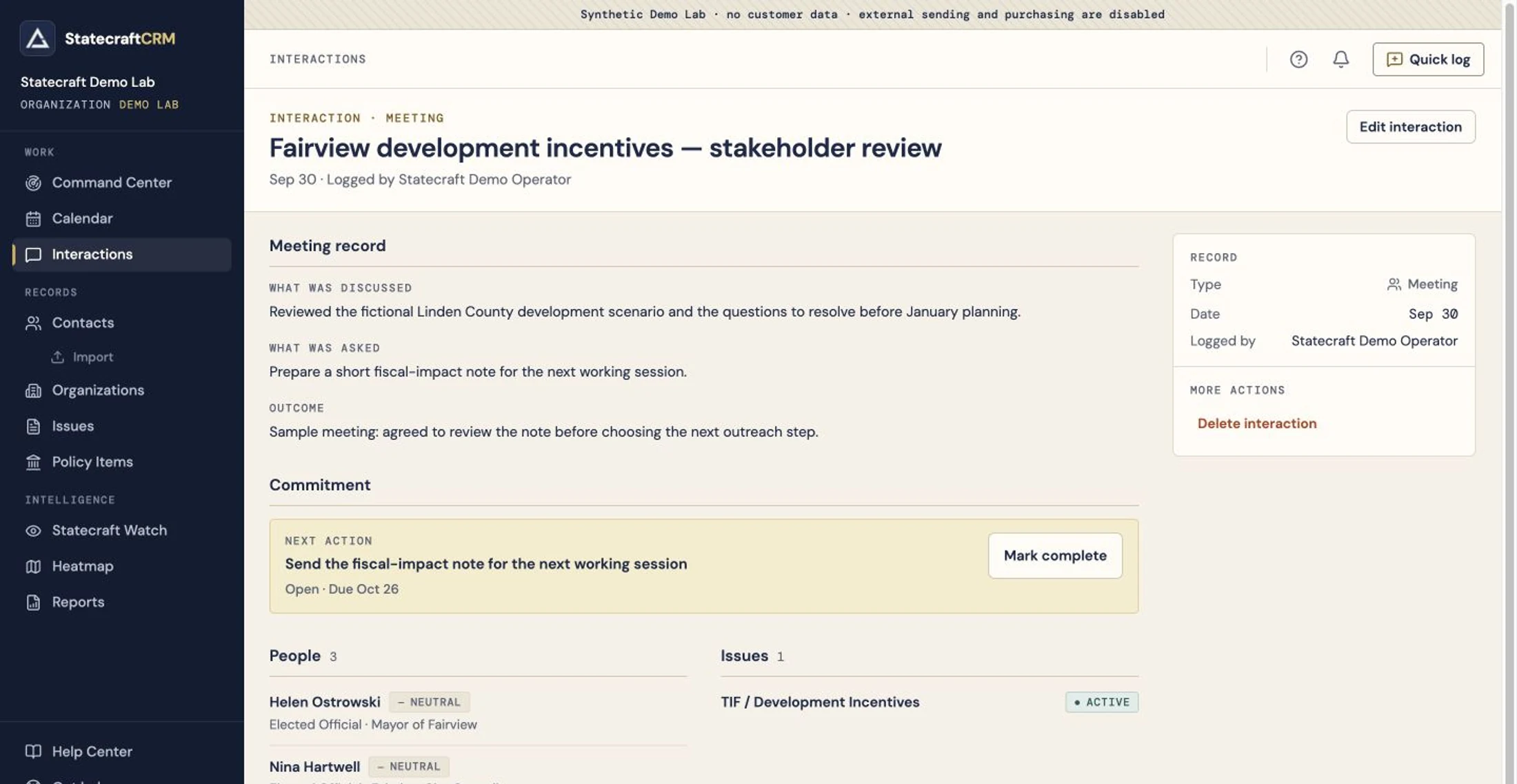
The saved record brings the meeting account and the open commitment together. The demonstration data makes the example safe to share; the screen is the released product interface.
Check your work
You are finished when a teammate can answer all five questions from the saved record:
- Who was involved, and when did the conversation happen?
- What changed or became clearer?
- What was asked, and what was actually agreed?
- Which Issue does this work belong to?
- If action remains, who owns it and when is it due?
A form that saved successfully can still be an incomplete operating record. Check its meaning as well as its fields.
Edge cases / troubleshooting
Access or missing actions
You need Editor or Admin access to create an interaction. A Viewer can review records but cannot perform this task. If the action is unavailable, confirm your workspace and ask your Admin to check your role.
For a fuller entry, use Interactions → Log interaction. This records the same kind of work as Quick log, but its save button is Log interaction, rather than Save intelligence.
A person or Issue is missing
Check spelling, workspace, and the existing record lists. If the record does not exist, create it through the appropriate workflow or ask the responsible teammate. Do not create a near-duplicate to get past the form.
Policy Item linking
Quick log has no direct Policy Item selector. Save the interaction first. Then open the relevant Policy Item and use Connect record to connect the existing interaction. Confirm the link on the resulting record. Linking an Issue does not automatically create or prove a separate Policy Item link.
The conversation created several promises
The form offers one current next-action field. Make the immediate action explicit and record the remaining context in the discussion or outcome. Agree how your team will handle the other work instead of treating this field as a multi-task checklist. Keep each promise’s owner and timing clear; do not imply that one current action tracks every promise separately.
There was no decision, or ownership is unresolved
An unresolved outcome is useful information. Record what remains unknown and the next agreed way to resolve it. Do not manufacture a positive outcome. If an action’s date or responsible person is unresolved, settle that with the team rather than inventing agreement for a tidy record.
Save shows an error
Keep the text of your entry. Check the interaction list for a partially saved record before submitting again. The interaction and its links are saved in separate steps, so an error can leave a record that needs its links checked. Correct or complete the existing record where appropriate instead of creating a second copy.
The commitment is missing from Command Center
Open the interaction. Check that Next action has text, that it is still Open, and that its date and responsible teammate are correct.
In Command Center, My Work helps you review your work; Team shows the shared operating picture. Find the open commitment and check its displayed owner and date. If another teammate owns it, review Team rather than assuming it is missing from your personal view.
The follow-up is finished or was completed by mistake
Open the saved interaction and use Mark complete only after the action has actually been carried out. Review the resulting state. If it was completed by mistake, the record offers Reopen follow-up. Do not use completion to hide overdue work.
Next
Return to the relevant Issue or Policy Item to prepare the next move. At the next team review, use the saved record to check progress and resolve any overdue or unassigned work.
9. Close the commitment loop
Outcome: completed work is recorded and remaining work has a deliberate next step.
Use this after: finishing a promised action or reviewing open commitments.
Before you start: know what actually happened. Completion is an operating fact, not a way to tidy the queue.
The main path
- Open Command Center. Use My Work for your assigned actions or Team for the shared review.
- Open the commitment's Interaction. Read the promised deliverable and check its due date.
- Verify the action was carried out. If it is still open, use Edit interaction to correct the action, Responsible teammate or Next action date as agreed.
- When the action is finished, select Mark complete. Read the resulting Completed state and Completed commitment history.
- If a new action remains, use Edit interaction to record it and save. Check its state; use Reopen follow-up if the new work is still marked Completed.
- Reopen the record and verify the current action, date and responsible teammate. Check the completed history remains understandable.
A good record
Sam sends the fiscal-impact note and marks that action complete. Helen's questions then need a review. The new current action is “Review Helen's questions after the fiscal-impact note,” with an agreed owner and date. The earlier send remains in completed history; the new review is Open.
Check your work
The current state matches reality. A teammate can distinguish the work already done from the work still expected.
Edge cases / troubleshooting
Completed by mistake. Use Reopen follow-up and check the Open state. A history entry can remain after reopening; it does not mean the current action is complete.
Replacing text does not reset completion. Editing a completed action does not automatically reopen it. Always inspect and deliberately reopen new work rather than assuming a wording change opens it.
Several promises remain. An Interaction has one current next-action field. Keep the additional context and responsibilities clear in the narrative and agree how the team will manage the other work. Do not imply separate task tracking for every promise.
A date was missed. Confirm the facts, agree the next step and explain the change. Do not mark unfinished work complete or move a date solely to hide lateness.
Next
Review the priority with Chapter 11 or prepare the next meeting with Chapter 7.
10. Keep meetings and deadlines visible
Outcome: a correct scheduled event with useful context.
Use this after: agreeing a meeting, hearing, site visit or dated working session.
Before you start: confirm the actual date, time, duration and location. You need permission to create or edit the event.
The main path
- Open Calendar and select New Event.
- Enter Title and select Event type. Use a title that explains the work.
- Set Start and End, or All day when appropriate. Check the displayed dates and times carefully.
- Enter Location and a short Description. Under Linked Contacts and Linked Issues, find and select the relevant existing records.
- Select Create event. Find it in the calendar or Upcoming list and open it.
- Read the saved time, location and links. If something is wrong, correct it in Edit event, select Save changes and reopen to verify.
A good record
Fairview fiscal-impact working session, October 30, 9–10 a.m., links Helen and Fairview fiscal-impact review. The description says to review the note and unresolved questions before outreach. The time is a fictional scheduled review, not a statutory deadline.
Check your work
The intended event appears at the correct date and time. Its links open the right context. The people responsible know about the meeting; creating an internal event alone is not proof that invitations were delivered.
Edge cases / troubleshooting
Invitation text or ICS. Select Import invitation. Paste into Invitation text or ICS, then Parse invitation. Review every proposed field and suggested connection. Nothing is on the calendar yet. Select Confirm and create event only after correcting the proposal; check Event confirmed, return to Calendar and verify the time and links.
Forwarding is unavailable. Some environments display “Forwarding is not yet configured for this environment.” Use the paste/ICS route described above. Do not assume an email was received or parsed simply because you sent it.
Proposed Iowa hearing. On the Policy Item, read Hearing proposals for review, inspect the official history, date, location and matching confidence. Use Add reviewed hearing to calendar only after checking it. Recheck Calendar; a proposed or observed hearing is not automatically a confirmed event.
Timezone or all-day confusion. Compare the saved display with the original invitation and intended local time. A parsed date is a proposal; verify before and after confirmation.
An Issue deadline changed. Check its separately stored Calendar event too. Do not assume the two dates update each other.
Read-only event. A Viewer sees Event details with disabled fields. Ask an authorized teammate to correct it. Editing can also depend on who created the event; ask an Admin when an expected control is unavailable.
Next
Prepare with Chapter 7 and log the actual conversation with Chapter 8.
11. Run the weekly operating review
Outcome: the team leaves with explicit decisions and current records.
Use this after: the week's work, or before a leadership update.
Before you start: bring the people who can resolve priorities and ownership. This is a team review practice using the existing product, not a separate workflow screen.
The main path
- Open Command Center → Team. Review What changed? and open the developments that could alter a priority.
- Review the Issue command queue. Open each consequential Issue and check its objective, position, owner and deadline.
- Review Open commitments. Confirm what is complete, overdue, unassigned or blocked against the actual Interaction.
- Review What's coming? Check preparation for the next meetings, hearings and deadlines.
- Review Who needs attention? Inspect the contact histories behind coverage or continuity concerns.
- Agree decisions and update the relevant records using Chapters 3–5 and 8–10. Read the saved results before ending the review.
A good example
Cedar Ridge decides the fiscal assumptions need another check before outreach. Sam owns that check. The Issue notes explain the decision, the current commitment has a date, and the October 30 Event describes the review purpose. The team does not call a discussion a policy win.
Check your work
For each priority, someone can answer: What changed? What matters now? Who will do what next? By when? Where is that recorded?
Edge cases / troubleshooting
No recent record. Ask whether activity is missing from Statecraft or whether the work itself has stalled. These are different operating problems. Record the answer accurately.
One person knows everything. Have another practitioner read the connected records. Fill gaps in role context, rationale and open promises before a handover becomes urgent.
A dashboard label looks decisive. Counts and flags describe recorded activity. Verify meaning in the source; they do not establish stakeholder support, legal outcomes or the quality of outreach.
An action belongs to someone else. Confirm responsibility with that person. The team must agree capacity and timing; selecting an owner in software is not evidence of that agreement.
Next
Use Chapter 12 to turn the checked operating record into a leadership report.
12. Produce the leadership report
Outcome: a checked PDF account of recorded work and remaining commitments.
Use this after: the weekly review or a leadership request for a defined period and scope.
Before you start: correct important gaps in the underlying records. Know the audience and the question the report must answer.
The main path
- Open Reports. In Government Affairs Report, choose This week, Last week, Last 30 days or Custom.
- Set the relevant filters under Filters. Keep the scope broad unless the audience needs a particular Issue, Policy Item, stakeholder, organization or tag.
- Check Contributors and Include sections. Confirm the intended people and sections rather than relying on the previous selection.
- Check Report title, Prepared by and Organization. Wait for the preview to finish loading.
- Read the preview's counts and source entries. Check outcomes and open commitments against the underlying records; correct misleading records before exporting.
- Select Download PDF. Open the downloaded file and inspect every page, its dates, scope, counts and readability before sharing it through your team's approved channel.
A good example
Cedar Ridge's leadership report explains the fiscal-impact review, what stakeholders requested, the unresolved assumptions and Sam's next action. A recorded meeting is activity; the narrative explains what it means. The report does not turn a request for information into evidence of support.
Check your work
The downloaded file opens, matches the intended period and scope, and can be traced back to recorded work. The reader can distinguish outcomes from plans and open commitments.
Edge cases / troubleshooting
Empty report. Check dates, combined filters and Contributors. Contributor filtering follows the person who logged the Interaction, not the teammate assigned its next action. Start broad, then narrow deliberately.
Numbers seem surprising. Read the contributing records. “Issues advanced” reflects linked recorded activity; it does not prove substantive policy progress. Do not assume every headline metric has the same filter meaning without checking the entries.
Preview is still loading. Wait until the entries update. Do not download a previous preview immediately after changing settings.
Download fails or the file is incomplete. Keep the chosen settings, check whether a file reached Downloads, and inspect it before retrying. If no valid file exists, use Get help with the period, scope and visible error. Do not present a browser preview as proof of a successful PDF export.
Sensitive audience. Inspect the complete report for material inappropriate for its recipients. The product does not decide what your organization should disclose.
Next
Return any leadership decisions to the relevant Issue and next action. Use Chapter 11 at the next review.
13. Preserve continuity when people or roles change
Outcome: a successor can recover context and continue the work.
Use this after: a stakeholder changes role, a teammate hands off responsibility or continuity risk appears.
Before you start: verify the change and distinguish the person from their office. Agree who will own remaining work.
The main path
- Open the existing Contact. Read their current role, linked work and prior Interactions.
- Use the contact's edit form to update Title, Role status and relevant role dates when the facts are known.
- Save and inspect the contact's role history. Keep historical conversations attached to the same person.
- Review the connected Issues, Policy Items and open commitments. Identify what still needs action.
- Use Edit interaction to assign the agreed Responsible teammate and date for remaining work. Add the handover context to the relevant narrative record.
- Ask the successor to read the saved records and explain the next move. Resolve gaps before treating the handover as complete.
A good example
If Helen leaves the mayoral role, Cedar Ridge updates Helen's existing role context and preserves her earlier meetings. A new mayor is a different Contact. Sam's successor receives the fiscal questions, source links and open promises, rather than a note saying only “take over Fairview.”
Check your work
The current role is accurate, history is accessible and the successor knows the next action. Historical attribution has not been rewritten to make the record look current.
Edge cases / troubleshooting
Role history. Expand View … former role on the contact when available. Verify the saved title and dates. A role transition is not a reason to delete the person's history.
The date is uncertain. Leave unknown facts unknown and explain the uncertainty in Notes. Do not invent exact dates to complete a tidy timeline.
A relationship is single-owned or inactive. Inspect the history and ask the team what is missing. The flag does not prove a relationship is lost or that no conversation occurred.
A teammate is leaving. Review responsibility before an Admin changes access. This chapter does not authorize inviting, removing or changing a person's permissions. Route access work to an Admin under Chapter 14.
Next
Review continuity with Chapter 11; use Chapter 14 for maintenance and access requests.
14. Maintain the workspace and get help
Outcome: know the responsible person and the next safe step when maintenance or help is needed.
Use this after: finding a data problem, preparing a roster import or needing access or support.
Before you start: confirm the workspace and your role. Keep a copy of any import file. Access changes belong to an Admin.
The main path
- Identify the problem in its source record. Check whether the issue is an incorrect fact, a duplicate, a missing connection or an unavailable action.
- Correct verified facts through the appropriate record procedure. For a bulk roster, use the import review below rather than creating contacts one by one without checking duplicates.
- If an action is unavailable, ask an Admin to check Settings → Members and your role. Explain the task you need to perform.
- For a workspace data copy, ask an Admin to open Settings → Export → Download workspace JSON. Keep the downloaded file in your organization's approved location.
- Open Help for this page for task guidance, or Help Center to find the relevant job.
- If you remain blocked, open Get help. Choose Area, write a Short description and explain What happened? Include expected and actual behavior. Review the information before selecting Send to a human.
A good example
“Importing our fictional stakeholder roster: the columns mapped correctly, but Dana needs identity review. I expected to update an existing contact. I have not selected ‘create new’ because this appears to be the same person.” This gives the responsible teammate a specific problem to resolve.
Check your work
The correction is visible, the export opens or the request describes a clear next step and responsible person. Do not assume a support request has been resolved merely because it was submitted.
Edge cases / troubleshooting
Import a CSV. Open Import. Use Download CSV template if useful. Select Choose a CSV file, then Continue. Inspect the preview and Map your columns; Name must be mapped. Review the other mappings and choose Import … contacts only when correct. This action starts processing; it is not another dry-run preview.
Review every import result. Read Roster import results for New, Updated, Unchanged, Needs Review and Error. A matching name can require choosing Update [name] — [title] or This is a different person — create new. Confirm identity before deciding. Open the resulting contacts and inspect their saved fields. Some rows can succeed while others need review; do not rerun the whole file blindly.
Import fails. Preserve the file and row results. Check the workspace and sign-in, then inspect Contacts before retrying. Ask for help with the affected rows and visible error; do not assume all rows failed or all succeeded.
Roles. A Viewer can read Interactions and events but cannot edit them. Editors can edit Interactions; workspace JSON export is Admin-only. Event editing can be narrower. Ask an Admin when the expected task is unavailable rather than assuming every role can change every record.
Membership and plan limits. Admins can inspect Members and displayed capacity. This manual does not instruct a new employee to invite, remove or promote people. Route those decisions to the workspace Admin. Check current product access rather than relying on an old plan name or a fixed price table.
Export is a data copy. The JSON includes records, IDs and relationships. Keep it secure under your organization's rules. Downloading a copy does not confirm that it can be restored. Review what it contains.
Next
Return to the interrupted task. Use Reference B if the symptom is still unclear.
Reference A. Record standards
The minimum useful record
The form's required fields are the software minimum. Your team's operating standard is that another practitioner can understand the facts and act without interviewing the author.
| Record | Team standard |
|---|---|
| Contact | One intended person; current role and institution; source or uncertainty when relevant; relationship context without invented policy support |
| Organization | Recognizable institution; useful context; people connected to the intended body |
| Issue | Desired outcome; current position and status; priority; owner; meaning of any deadline |
| Policy Item | Identifiable instrument or proceeding; jurisdiction; source; current status; relevant Issue connections |
| Development | What changed; source/provenance; materiality; implication separated from fact |
| Interaction | Actual date; clear summary; discussion, ask and outcome as needed; relevant people and Issues |
| Commitment | Specific deliverable; agreed owner and date when work remains; state that matches reality |
| Event | Correct date/time and duration; purpose; location; useful links; reviewed confirmation when imported |
Write so a teammate can continue
Use a subject and result in a title: “Fairview development incentives — fiscal-impact note requested.” Prefer “Send the fiscal-impact note” to “Follow up.” Write “Helen requested information; position not established” instead of inferring support.
State uncertainty directly. “Guidance not yet verified” is more useful than a confident claim without evidence. Include an authoritative source when available, and distinguish the event date from when your team learned about it.
Describe an internal target as an internal target. A date on an Issue or Event does not make it a legal deadline. Seek the appropriate professional review for legal interpretation.
Connected fictional scenario
Cedar Ridge Industries works on TIF / Development Incentives in fictional Linden County and Fairview. Helen, Nina and Evan are local stakeholders; Dana and Marcus provide fictional state-level context; Glen and Carla provide county context. Sam owns a fiscal-impact note and subsequent review. Jordan and Morgan are fictional team members used in the operating examples.
SB2472 and the Fairview ordinance example are demonstration context. The manual makes no assertion about a real bill's provisions, a real official's views, an election, a meeting or a statutory obligation.
Record facts after they happen. A preparation note, invitation or planned ask is not evidence of an actual conversation or agreement.
Reference B. Troubleshooting by symptom
| Symptom | First check | Next step |
|---|---|---|
| The wrong people or work appear | Workspace name in sidebar | Stop editing and open the intended workspace/account |
| Create or edit action is missing | Your role and the record context | Ask an Admin; do not create a duplicate through another route |
| Save reports an error | Whether a record already exists | Preserve text, inspect the list and repair the existing record before resubmitting |
| A link or development seems absent | Saved source record after refresh | Verify the intended connection before repeating the action |
| A promise is absent from My Work | Interaction's current action, owner and state | Check Team; correct responsibility deliberately |
| A replacement action is Completed | Saved commitment state | Use Reopen follow-up when the replacement is still work to do |
| A report is empty | Period, filters and author-based Contributors | Start broad, then narrow; wait for the updated preview |
| PDF seems missing | Downloads and the file itself | Open and inspect a real PDF; seek help if none is valid |
| Watch has no new development | Monitored/watched record and sync status | Inspect the official source when timing matters; automation is Iowa-only |
| A hearing is only proposed | Review region and official history | Confirm deliberately, then verify the Calendar event |
| Imported time looks wrong | Original invitation and displayed timezone/date | Correct the proposal before confirming; reopen the saved event |
| Import has mixed results | Row-by-row result status | Resolve identity review and errors without reimporting successful rows blindly |
| Relationship risk looks wrong | Actual contact history and missing records | Verify context; a flag is a prompt, not a conclusion |
For help, use Help for this page, Help Center or Get help. Give the task, expected result, actual result and relevant record context. Do not include passwords or unrelated sensitive information in a support description.
Reference C. Product boundaries and glossary
Boundaries that matter in daily work
- Automated legislative coverage is Iowa-only. Record other jurisdictions' developments manually.
- A personal Watch selection is not a nationwide news feed. A Workspace development is not an official-source event.
- A hearing or invitation proposal needs human review and confirmation. Check the saved date, time and connections afterward.
- Use the released browser experience on a phone. This manual makes no claim that native iOS, voice capture or card scanning is shipped.
- Available actions can depend on role, record context and product access. Ask your Admin when a needed action is unavailable.
- Follow your organization's information-handling rules. This manual does not promise certifications, legal compliance, universal audit coverage or security guarantees.
- Product counts describe recorded activity. The team supplies judgment about policy progress, relationship strength and operating priorities.
Glossary
| Term | Meaning here |
|---|---|
| Contact / stakeholder | A person whose role or relationship matters to the work |
| Organization | The institution or body associated with people and policy work |
| Issue | Your team's sustained objective or priority |
| Policy Item | A particular bill, ordinance, proceeding or other policy record |
| Interaction | A saved account of an actual conversation or engagement |
| Commitment / follow-up | The current next action recorded on an Interaction |
| Event | A scheduled meeting, hearing, visit or other calendar entry |
| Development | A recorded change associated with a Policy Item |
| Workspace | Team-entered provenance for a development; also the shared account context named in the sidebar |
| Official source | Provenance supplied by the supported legislative source workflow; still inspect the underlying source |
| Watch | Your selected records and their relevant developments |
| My Work / Team | Personal follow-through and the shared operating picture in Command Center |
| Relationship score | Recorded relationship judgment, not proof of a position on an Issue |
| Materiality | The recorded importance of a development, requiring human judgment |
| Contributor | In report filtering, the person who logged the Interaction |
The rule to remember
If the next person cannot tell what changed, what matters, who owns the next move, and where the evidence lives, the record is not finished.
Start at Command Center. Work from the source record. Leave the next move on the record.